
Once an employer has been connected, BrightPay Connect will maintain a chronological history of your backups automatically for you. These backups can be restored at any time, if required.
To restore a backup from BrightPay Connect
1) On BrightPay’s starting screen, select the Backup & Self Service tab:
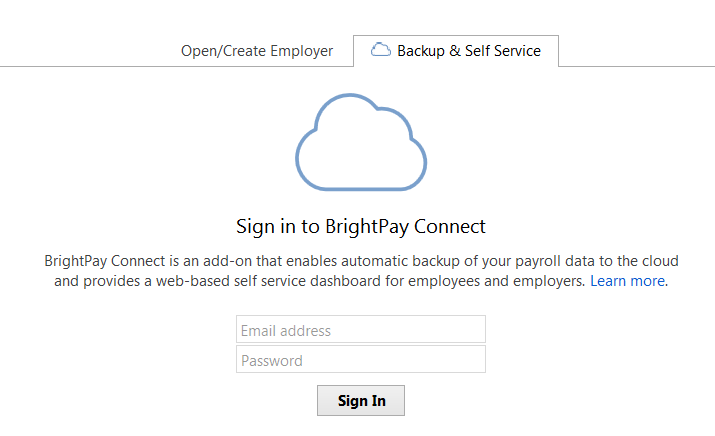
2) Sign in to your BrightPay Connect account. The employers that have been connected to your BrightPay Connect account will be displayed on screen, as well as the date and time that they last synchronised.
3) Click the spanner symbol to the right of the employer file you wish to restore and select 'Restore from Cloud Backup..'.
4) Select the backup you wish to restore and click 'Restore'.
5) As soon as the download is complete, click 'Restore and Open' to replace your current data file with the backup. Alternatively, press 'Save as' to save the backup to a location on your computer.
A backup can also be restored while you are in an employer file which is connected to BrightPay Connect:
1) Click the green Cloud icon at the top right of the screen and select 'Restore from Cloud Backup'.
2) Select the backup you wish to restore and click 'Restore'.
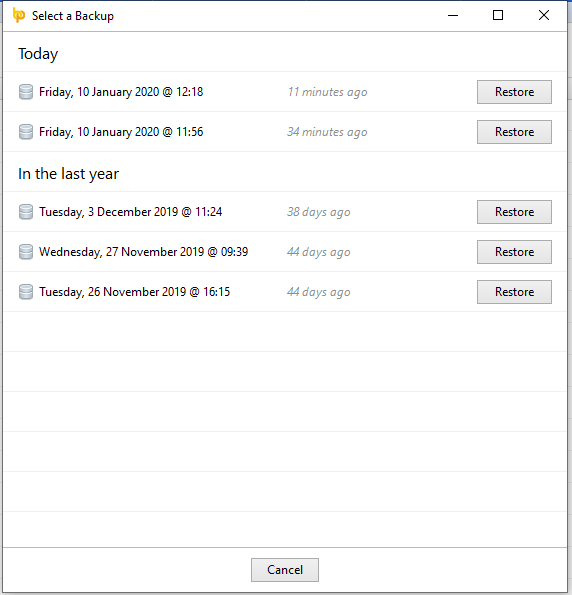
3) As soon as the download is complete, click 'Restore and Open' to replace your current data file with the backup. Alternatively, press 'Save as' to save the backup to a location on your computer.
Important - To use Connect, you’ll need an active subscription. If your subscription has expired, please get in touch with our Payment Services team to see if it can be reinstated. You can email them directly at billing@brightsg.com, and they’ll be happy to assist you.
Comments
0 comments
Article is closed for comments.