
BrightPay provides a quick and seamless import utility to bring across your company and employee details from PayBack payroll software.
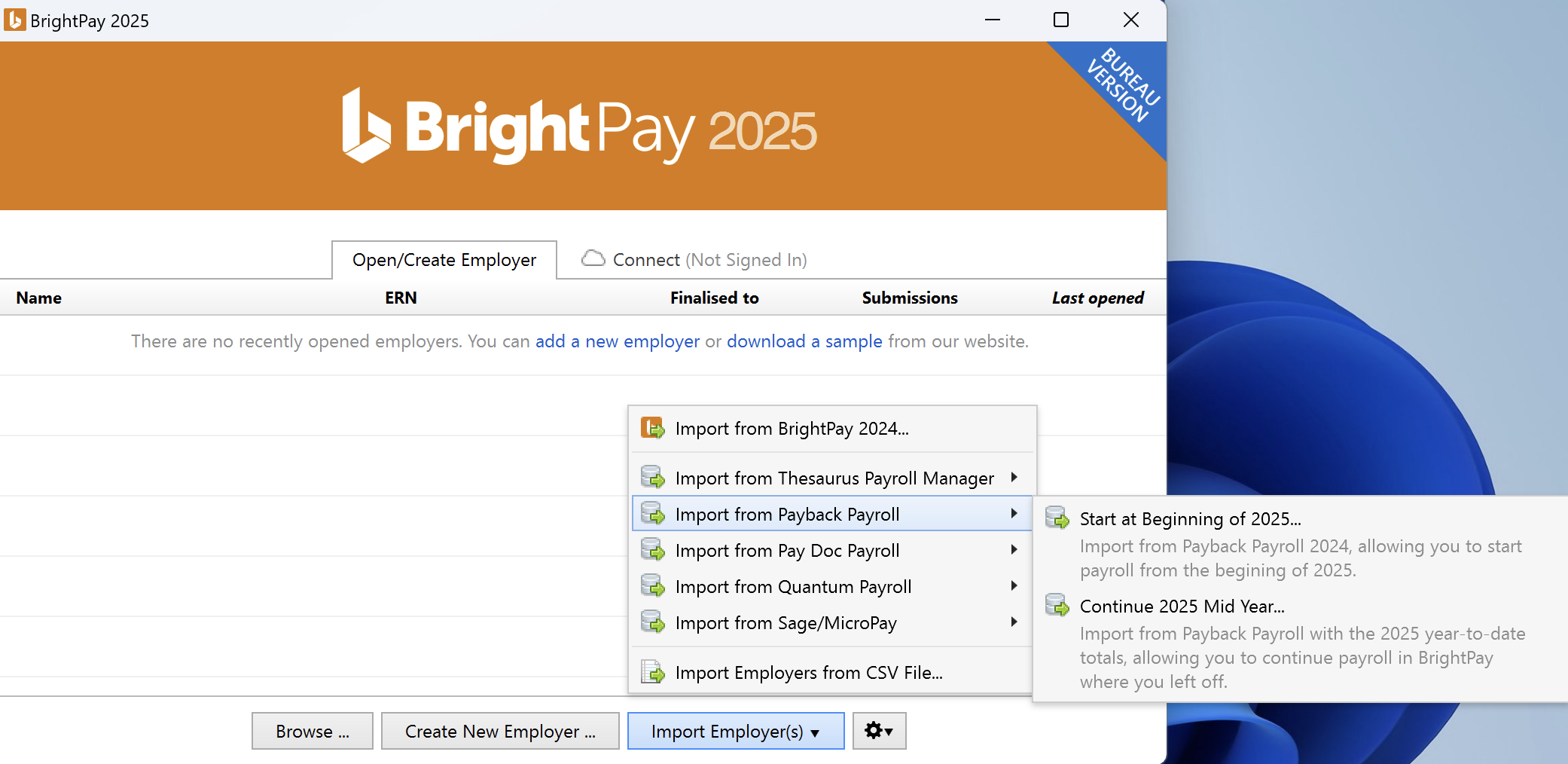
- To begin the import, simply click on the ‘Import Employer’ button at the bottom of the ‘Open Employer’ screen and select 'Import from PayBack Payroll'.
- Choose from the options 'Start at beginning of tax year' or 'Continue Mid Year' as required:
-
Browse to the location of your PayBack data file(s). The default location for the data files is C:/ Payback data/ and the file to select will normally be titled <year>_03.log (with 'year' being the year you wish to import e.g. 2024)
BrightPay will read the contents and then display your list of companies. Simply select which companies you wish to import.
- Once the import process is completed, simply open your new BrightPay company file(s) to review your information and commence payroll.
Please note: if you selected the option 'Continue Mid Year', BrightPay will automatically import your employees' mid year totals to date from the PayBack file selected at time of import.
These can be viewed in each employee's 'Mid Year Totals' within each employee's record. 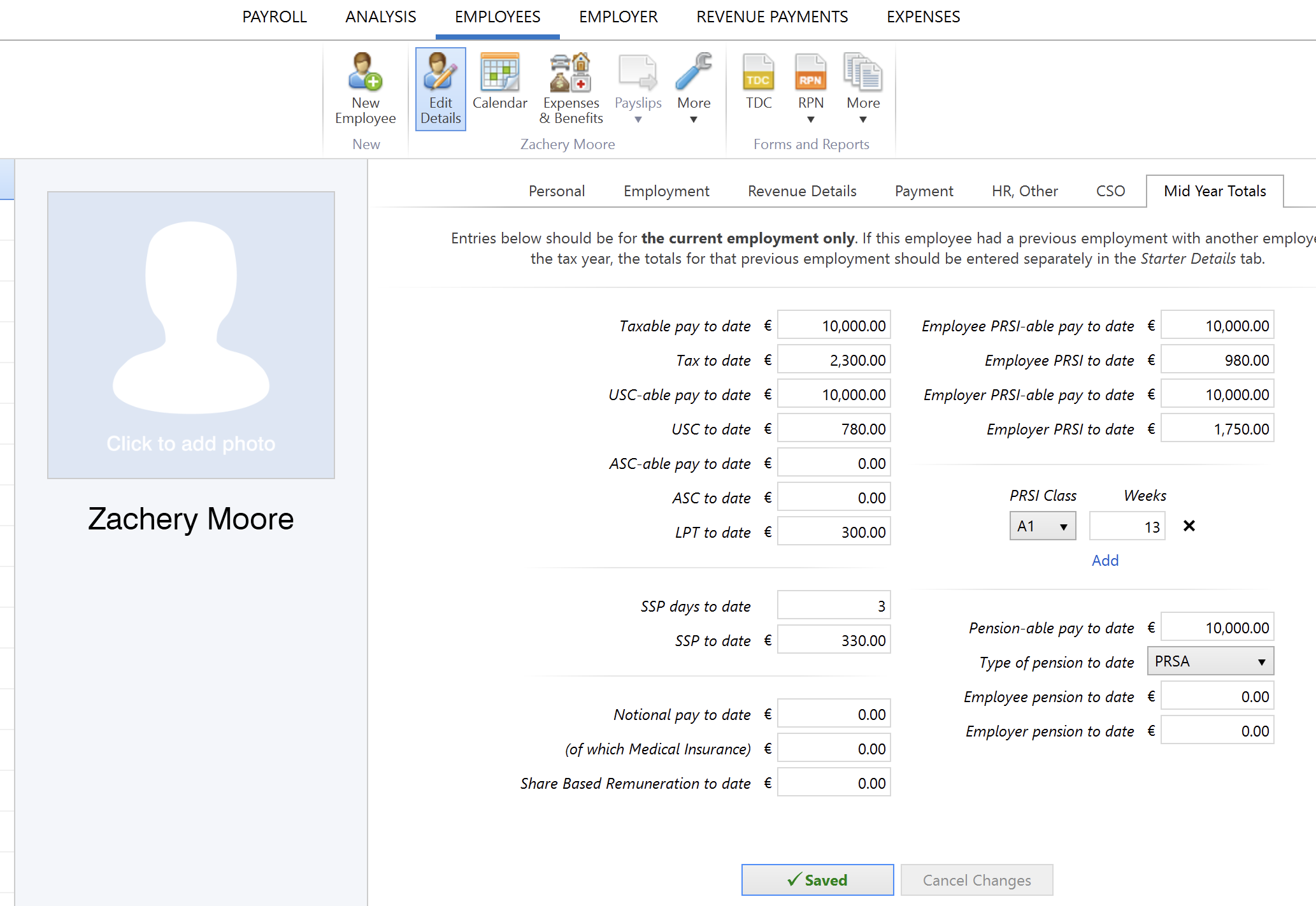
Following the import, further employee information can be manually entered within 'Employees', if required. Alternatively you may wish to update missing employee information using CSV file.
It is also strongly recommended that all employer and employee details are reviewed before processing any payroll to ensure information imported in is correct and applicable for the tax year in question.
After reviewing your employer and employee information, simply click the 'Payroll' tab to commence processing payroll.
Comments
0 comments
Article is closed for comments.