
Revenue facilitate the following payment methods for your returns:
- Credit card
- Debit card
- Using your bank account
- ROS Debit Instruction
- Fixed direct debit/ Variable direct debit
The following payment methods are available to use within either the Statement of Account utility or the Payments & Refunds utility within ROS:
- Credit card
- Debit card
- Using your bank account
- ROS Debit Instruction (if registered for this)
Making a payment through the Payments & Refunds utility in ROS
- Log in to your ROS account in the normal manner
- Go to My Services > Payments & Refunds > Submit a Payment
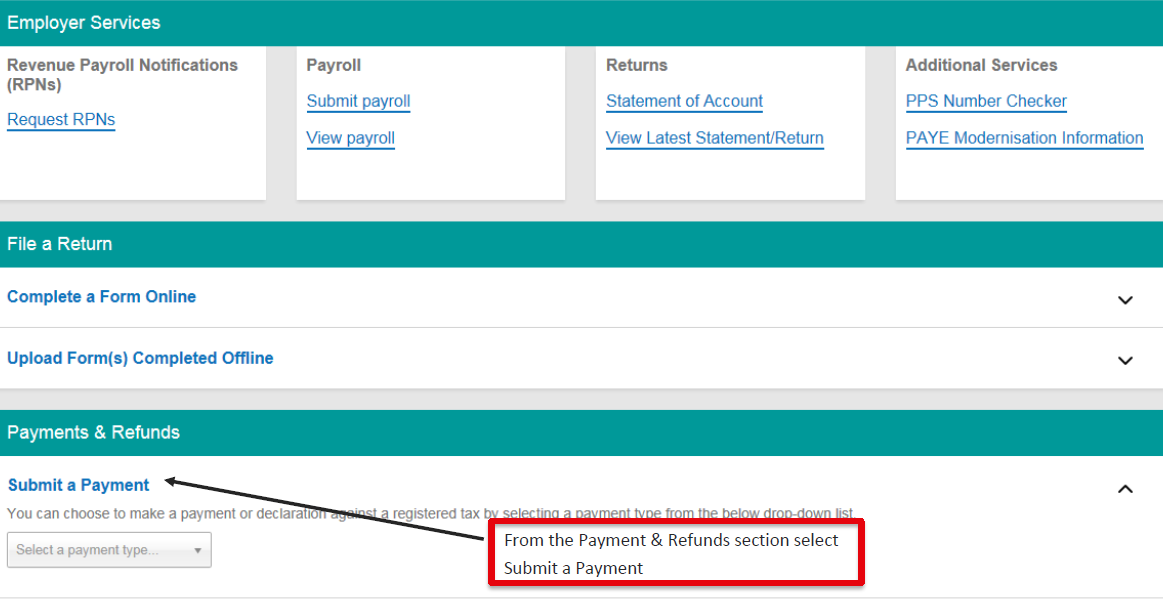
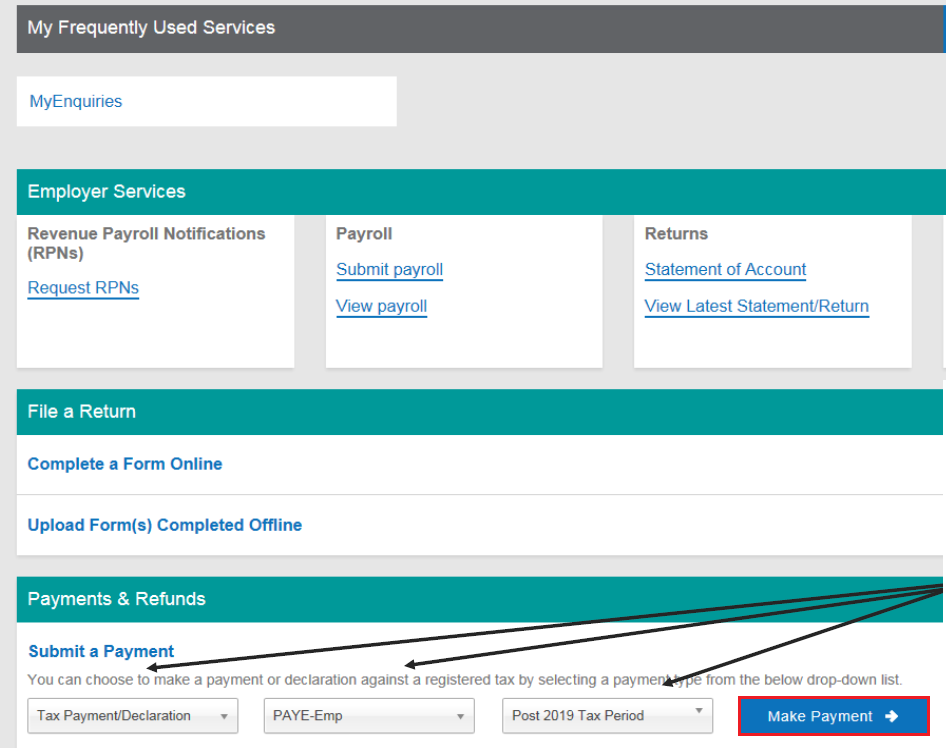
- For Payment Type, select Tax Payment/Declaration from the drop down listing
- For Tax Type, select PAYE-Emp from the drop down listing
- Select the applicable Period from the drop down listing
- Click Make Payment to continue
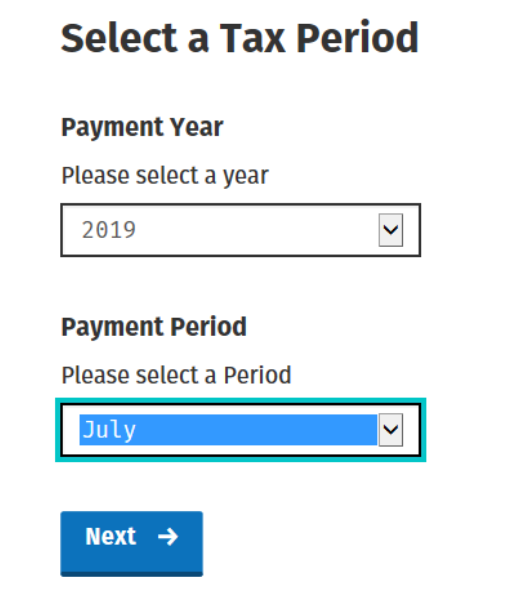
- On the next screen, select the Payment Year and Payment Period you wish to pay. Click Next.
- The pre-populated figures displayed will be based on all the periodic payroll submissions received in the period selected for payment:
Please note: If any interim payments have been made already for this period, these will not be reflected here.
a) simply click Next if the pre-populated amounts are correct or
b) amend the figures accordingly, if required, before proceeding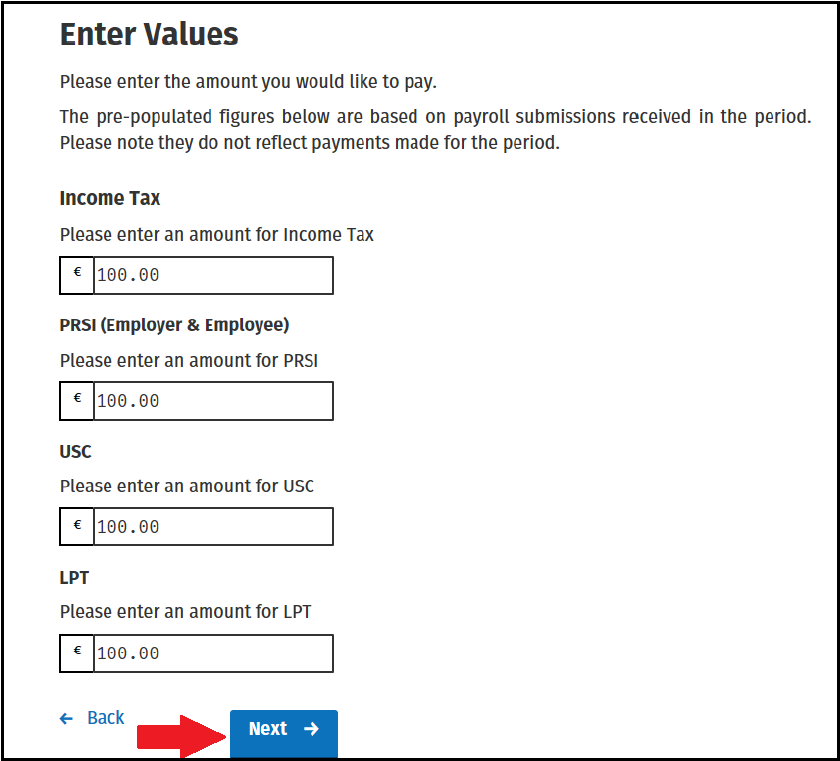
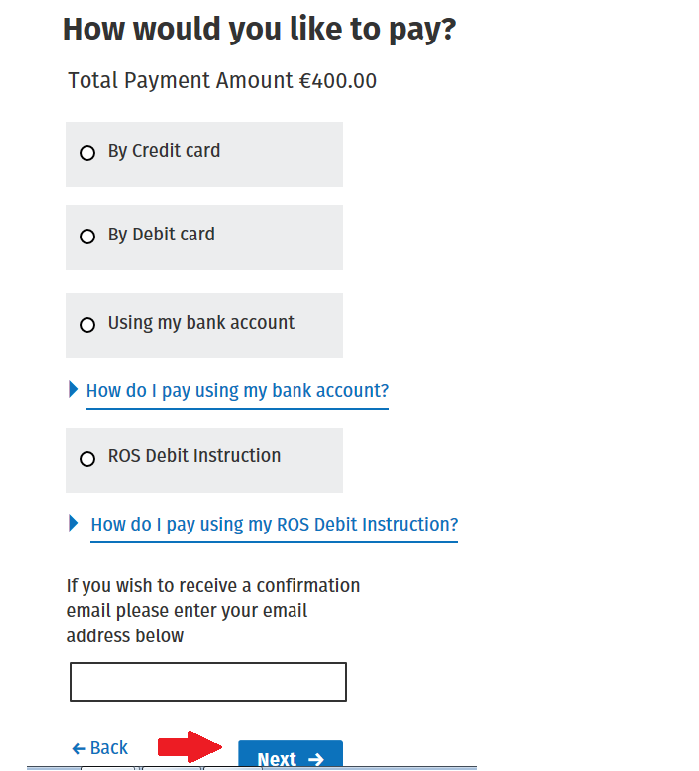
- On the next screen, select how you would like to pay.
Please note: the ROS Debit Instruction option will only be available if this has been set up in ROS.
- Based on the payment method selected, complete the steps provided to you.
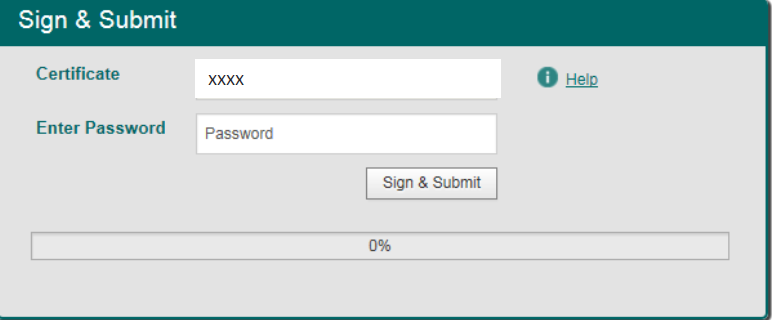
- Once all steps have been completed, you will be presented with the Sign & Submit screen.
- Enter your certificate password and click Sign & Submit to submit your payment
Comments
0 comments
Article is closed for comments.