
To access the Reporting function, click Analysis.
A number of pre-set reports have already been set up for your use and can be found within the Saved Reports section in the menu toolbar. Some of the saved reports display in the toolbar while others can be found by selecting "More".
These saved reports represent the most common payroll reports generally used. The default reports that appear in the toolbar consist of:
- Audit Trail
- Daily Pay
- DSP Benefits
- Hourly Pay
- Notional Pay
- Payroll Summary
- Pensions
-
Year to Date
The saved reports available under "More" consist of:
- Additions
- ASC
- CWPS
- Deductions
- DSP Benefits (Year to Date)
- Employee Contact Details
- Employee Details
- Employee Payment Details
- NECI
- Notes
- Pensions (Year to Date)
Manage Reports
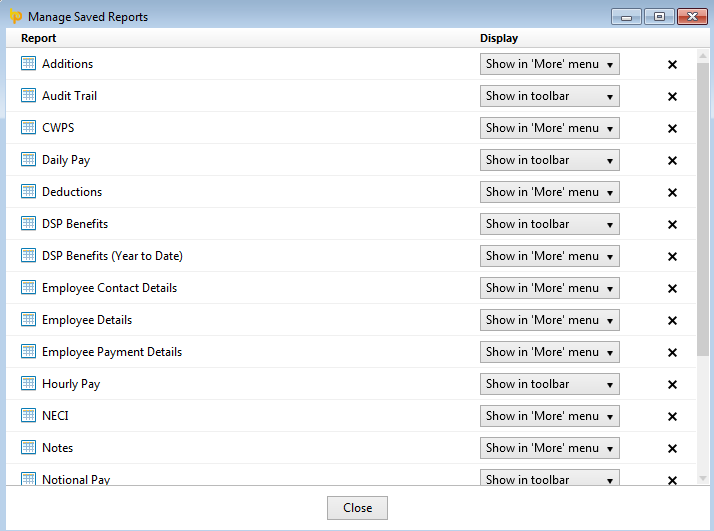
a) In this utility you can manage the saved reports i.e. you can indicate that a report should show in the menu toolbar, remove a report from the toolbar and delete reports.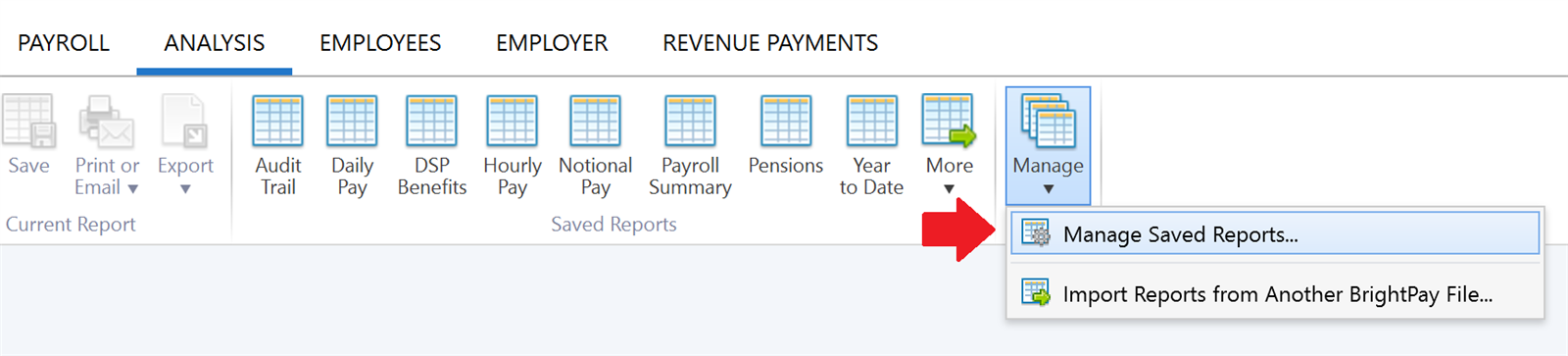
b) Also within Manage Reports, if you have created and saved a report (or multiple reports) in one employer file which you would like to use in another, these can be imported into your currently opened employer file. 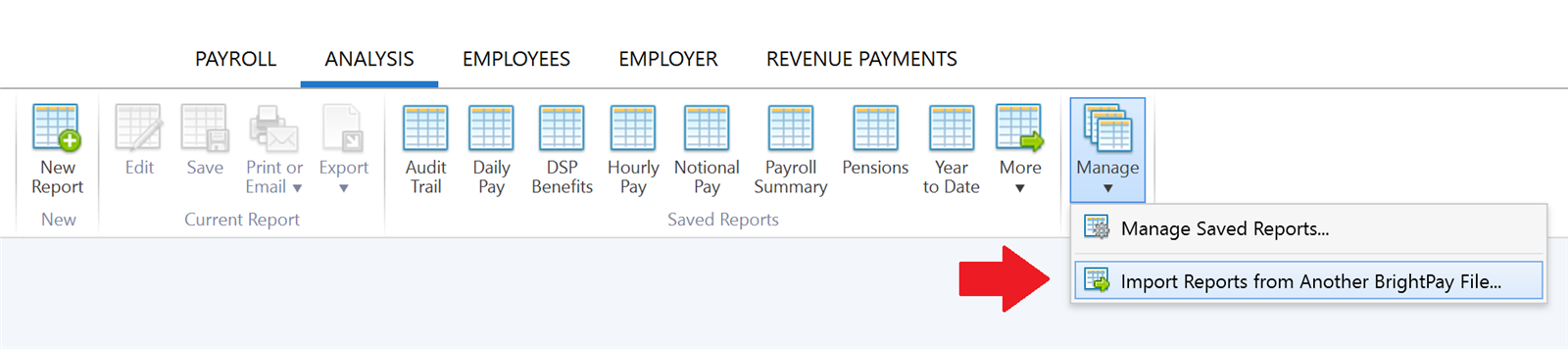
For help with this, please click here
NOTE - If you do not have Connect and want to access reports from previous years, you will need to open the relevant year first. Then, navigate to the analysis section, select the desired report and period.
Comments
0 comments
Article is closed for comments.